How to connect
This page is the very beginning. Connecting takes 15 minutes and does not require a developer. Code integration is described on the Website integration page.
First: where the money goes
The money is never held by Qut Pay. The customer pays directly into your Kaspi Pay account; we only create the invoice, watch for its payment and notify you.
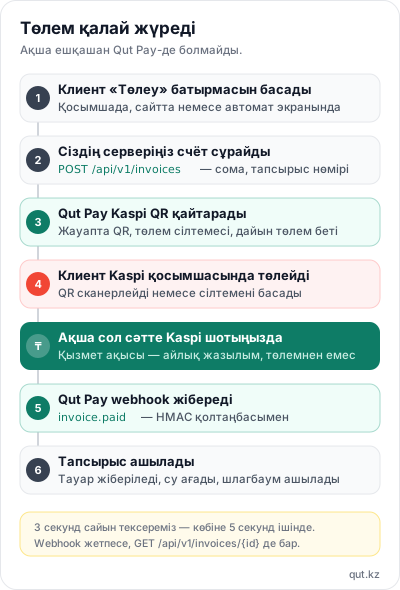
Five steps
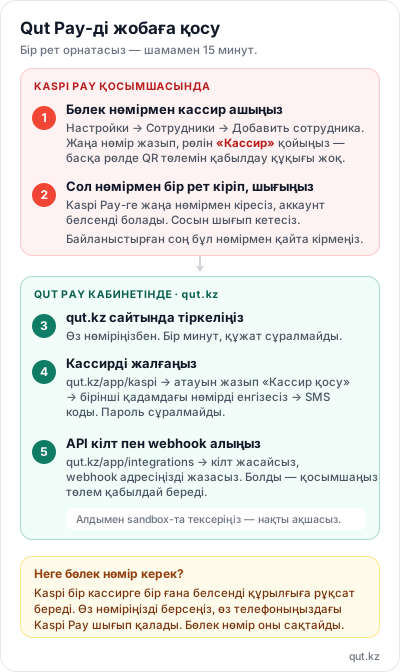
Step 1. Create a cashier with a separate number in Kaspi Pay
Open the Kaspi Pay app on your phone (not the web cabinet):
Настройки (Settings) → Сотрудники (Employees) → Добавить сотрудника (Add employee)
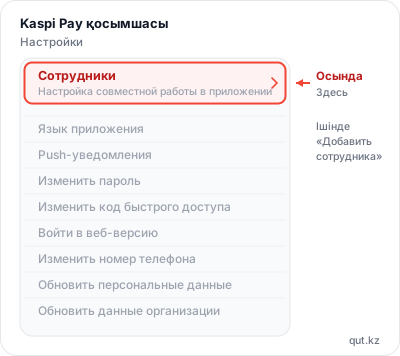
Enter the new number and choose a role. The number must be a different one — not the number you use every day. The reason is explained below.
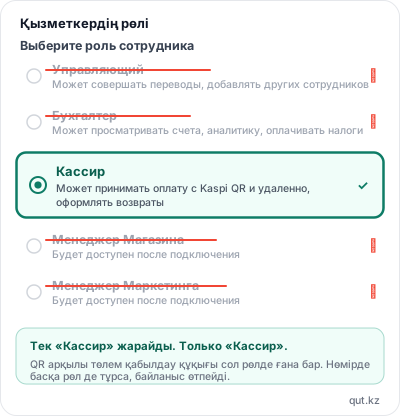
The role must be "Кассир" (Cashier) only
Kaspi offers five roles. Only one of them works for us:
| Role | What Kaspi says it can do | Works for us |
|---|---|---|
| Управляющий (Manager) | Makes transfers, adds employees | No |
| Бухгалтер (Accountant) | Sees invoices and analytics, pays taxes | No |
| Кассир (Cashier) | Accepts payments via Kaspi QR and remotely, processes refunds | Yes |
| Менеджер Магазина (Store manager) | Not yet enabled in Kaspi | No |
| Менеджер Маркетинга (Marketing manager) | Not yet enabled in Kaspi | No |
If you choose a different role, the connection will not work even with a correct SMS code: only the Cashier role has the right to accept payments via QR.
Step 2. Sign in once with that number, then sign out
Sign in to the Kaspi Pay app with the new number. The account becomes active (Kaspi calls this "activation"). Then sign out of the app — the slot becomes free, and we take it.
If you skip this step, the connection will not be established in step 4 even with a correct SMS code.
The phone that holds the cashier number does not need the Kaspi Pay app permanently — after activation it is enough that the number can receive SMS.
After connecting, do not sign in to Kaspi Pay with this number again. Kaspi will see a new device and terminate our session, and the connection will have to be created again.
Step 3. Register at qut.kz
qut.kz → register with your own number. One minute, no documents required. Here you use your own number — not the cashier number.
Step 4. Connect the cashier
In the cabinet, go to the Kaspi cashiers section:
- Enter a name (for example "Main till" or "Store No. 2")
- Press the Add cashier button
- Enter the number you created in step 1
- Enter the SMS code sent to that number
Done. No password is requested — we never ask for one.
Step 5. Get an API key and a webhook
In the Integrations section:
- Create an API key —
qp_test_…(sandbox) orqp_live_…(real payments) - Enter your webhook address — when an invoice is paid, we send a notification there
Your application can now accept payments.
Why a separate number is needed
Kaspi allows only one active device per cashier. When a new device signs in, the old one is signed out.
If you give us your own number, at the moment we connect the Kaspi Pay app on your phone will be signed out. If you use it every day, that is inconvenient.
A separate employee number solves this completely: your phone is not affected, you keep using Kaspi Pay as before, and we only occupy that employee slot.
Three conditions for the cashier number
For the connection to succeed, the number must meet all three conditions at once.
1. A real SIM card that receives SMS. Virtual numbers and IP telephony will not work — Kaspi sends the confirmation code by SMS. At the moment of connecting, the phone with that SIM must be in your hands.
2. The number owner's IIN must not have a sole proprietorship (ИП) or LLP (ТОО) registered in Kaspi Pay. If the number owner is a business owner, Kaspi asks for a password and video verification at sign-in instead of an SMS. We connect a cashier only via SMS, so such a number will not work. The number owner must be an adult — this is a Kaspi requirement.
3. The number must have the Cashier role only. If it has additional roles — "Управляющий", "Бухгалтер", "Руководитель" — the number will not pass. Make sure it has the single "Кассир" role in your organisation.
One rule for the future: the SIM must stay active. If the operator disconnects it for long inactivity, the connection stops working. Keep a small balance on the number or switch to a plan with no monthly fee.
How to check
The most reliable sign is what Kaspi asks for during connection:
| What Kaspi asks for | What it means |
|---|---|
| SMS code only | The number works, the connection finishes in a minute |
| Password or video verification | The number is not suitable for the cashier role, take a different one |
Do not check the number by signing in to the app. If you sign in to Kaspi Pay with the cashier number after connecting, the connection is terminated.
Whose number can be used
The number of any person who has no ИП/ТОО in Kaspi Pay works: your spouse, parents, business partner. Many buy a new SIM — from 500 tenge, and the problem is solved for good.
It is worth telling the number owner two things in advance:
- If that person has signed in to Kaspi Pay before, they will be signed out of that app when we connect. Their personal Kaspi is not affected; they keep using it as before.
- The cashier number is visible to the customer in the invoice notification. This is normal Kaspi behaviour and does not affect payment, but it is better to warn them so there are no surprises.
Do not confuse the three numbers
| Number | What it is for | Common mistake |
|---|---|---|
| Your personal number | Signing in to the qut.kz cabinet, notifications | Trying to sign in to the cabinet with the cashier number |
| Cashier number | A separate SIM added in Kaspi Pay with the "Кассир" role | Making the main number, with an ИП registered to it, the cashier |
| Customer number | The buyer's number the invoice is sent to | Sending an invoice to a number without the Kaspi app |
In one line: personal number — for the cabinet, cashier number — for Kaspi, customer number — for the invoice.
How to connect a mobile app
The most frequently asked question. The answer: the app does not call us directly; everything goes through your server.
App → Your server → Qut Pay → KaspiThe reason: the API key must live only on the server. If you put the key inside the app (in the APK or IPA file), it can be extracted and used to create invoices in your name.
The sequence:
- The user taps "Pay" in the app
- The app sends a request to your server
- The server sends us
POST /api/v1/invoices(amount, order number) - We return
payUrland a QR - The app opens
payUrl— the Kaspi app on the phone opens immediately - The customer pays, the money goes to your account
- We send the
invoice.paidwebhook to your server - The server tells the app "paid"
Ready-made SDKs are available: Node.js, PHP, Python. Details are on the Website integration page.
The App Store and Play Market rule
If your app sells digital goods (subscriptions, premium, in-game coins), Apple and Google require their own payment systems — external payment is not allowed.
For physical goods, delivery, service fees or bookings, external payment is normal. Kaspi QR falls into this category.
Find out in advance which category your app belongs to.
Test in the sandbox first
The cabinet has two modes:
| Mode | Key | What happens |
|---|---|---|
| Sandbox | qp_test_… | No real money moves, Kaspi is not called, test as much as you like |
| Live | qp_live_… | Real Kaspi QR, real money |
In the sandbox, creating invoices, receiving webhooks and refunds all work exactly as in live. Switch to live only once your integration works correctly.
The sandbox does not need a Kaspi cashier either — you can start testing right after step 3.
Trial period
7 days free, up to 50 invoices per day. The trial starts from the first real invoice, not from the registration date. So you can spend a week preparing and then start the trial.
Plans and limits: Pricing.
What you will need
- A Kaspi Pay business account (ИП or ТОО)
- Access to the Kaspi Pay cabinet (to add an employee)
- A separate number (that receives SMS)
- For your website or app — someone who can write one request on the server side
If you have no server side: WordPress, OpenCart, a Telegram bot, a Tilda form and payment links work without code.
SMS code: timings to know in advance
Start connecting when the cashier phone is in your hands. Time is tight:
- The code is valid for about one minute. You need to enter it quickly.
- The whole connection process is one window of about 10 minutes. Entering the number and entering the code must fit into that window, otherwise you start over.
- Do not pass the code from person to person. By the time the cashier reads it out, the accountant writes it down and you enter it, the code has expired.
- If the SIM was switched off, switch it on and wait a minute or two. The SMS does not arrive immediately.
- If Kaspi temporarily limits code delivery, wait about a minute and start again.
Common errors
Kaspi asks for a password or video verification. The most common one. The number has a role other than "Кассир", or an ИП/ТОО is registered to the number owner's IIN. There is one solution: take a different number. See the three conditions above.
It says "This number is not in Kaspi Pay" or asks for an IIN. The number has not been added to the "Сотрудники" section at all. Complete step 1 and start connecting again.
The SMS does not arrive. The SIM is off, the code has expired, or Kaspi has limited code delivery. Switch the phone on, wait a minute and start again.
Instead of an SMS, Kaspi sent a "download link". This is normal; there is no need to download anything. That message means the employee has been added.
Wrong role. If the employee is listed as "Управляющий" or "Бухгалтер", they have no right to accept payments. Change the role to "Кассир" in the Kaspi Pay app.
"Signed in from another device" error. The cashier number is open in the Kaspi Pay app on another phone. Sign out on that phone and connect again.
The connection dropped. If someone signs in to Kaspi Pay with the cashier number, our session is signed out. Reconnect in the cabinet; a warning is sent to Telegram.
Everything is correct, but the connection is not established. Write to support: send the cashier number, a screenshot of the Kaspi screen and the time of the attempt.
The webhook is not arriving. Check that your address is not protected by a password. We do not sign in, so it must be open. For testing you can use a webhook.site address.
What this service is not
Qut Pay is an independent service that works on top of your own Kaspi Pay account. We are not affiliated with Kaspi Bank JSC and make no promises on behalf of Kaspi. Kaspi and Kaspi Pay are trademarks of their owner.
We only have the rights of the "Кассир" role: issue invoices, see their status, make refunds on our own invoices. We have no access to the money — payment goes directly into your Kaspi account. You can terminate the connection from the cabinet at any time.
If you need help
If you have a question about the steps on this page, write to us in the Support section of the cabinet or use the contacts below. Share your screen and we will set it up together.
Need help? WhatsApp +77788813333 · kazprose@gmail.com · 09:00–21:00 (Алматы)
You can also write from the dashboard: Support.
Qut Pay is an independent service, not affiliated with Kaspi Bank JSC. Kaspi and Kaspi Pay are trademarks of their owner.